In this guide, we'll show you how to access your course materials and how to download them.
Getting to Content
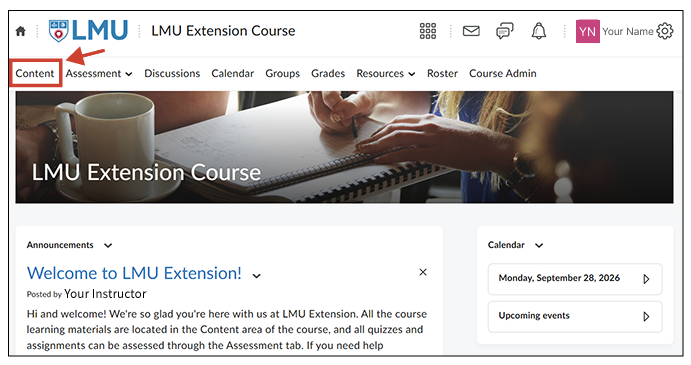
From the Course Homepage, click on Content in the NavBar.
What can you find in Content?
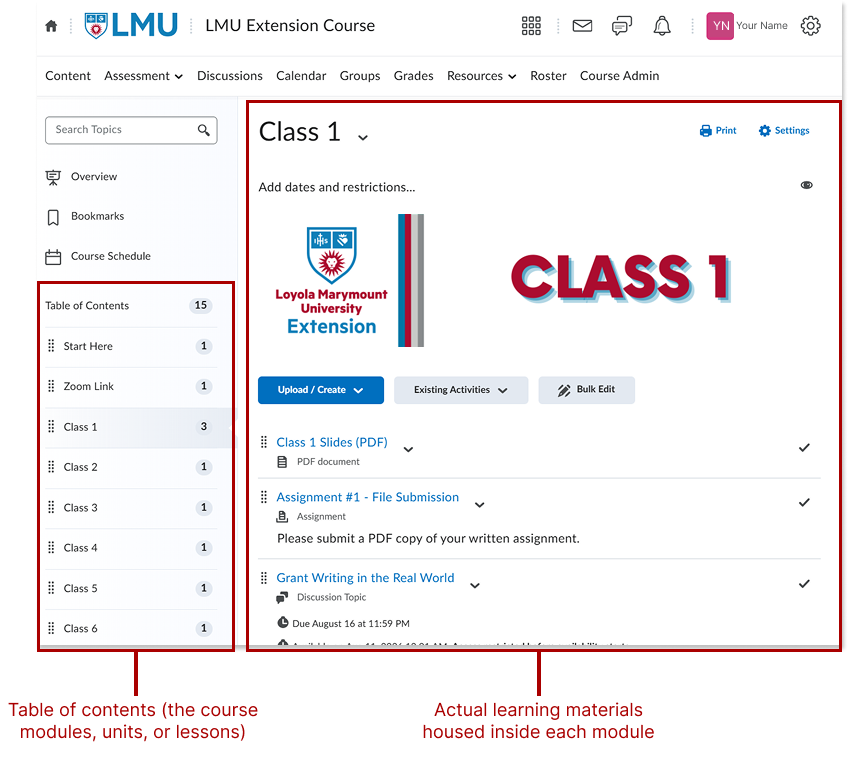
The Content page of Brightspace serves as an organized repository for learning materials for the course. It breaks down the course into 2 core pillars:
- Table of Contents: This is the backbone, outline, or blueprint. It acts as the navigation system, organizing the course into chronological or thematic modules, sub-modules, and units.
- The Learning Materials: This is the actual content housed inside that structure. It includes the files, videos, assignments, discussions, and quizzes that live under each specific module.
All files that have been uploaded by the instructor(s) can be *downloaded by students for offline access.
*does not apply to Chromebooks or other web-based only devices
**use the Brightspace Pulse app to gain offline access to course files
How to download files
1. From the module overview page
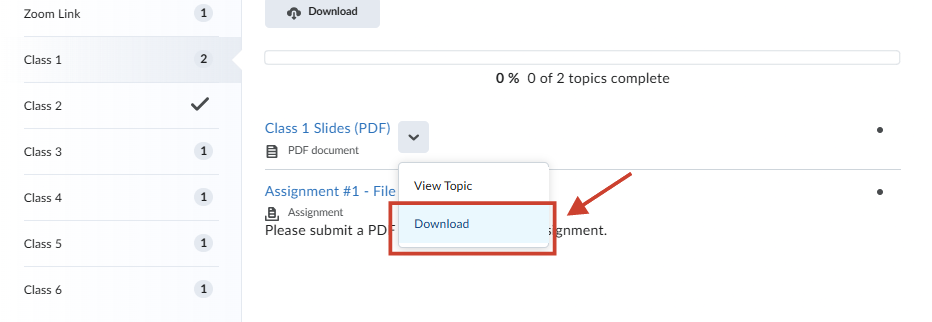
- Select your course module or unit on the left menu to display all materials for that module.
- Find the content you want to download, click the drop-down arrow located next to the title, then click Download.
2. From the content preview page
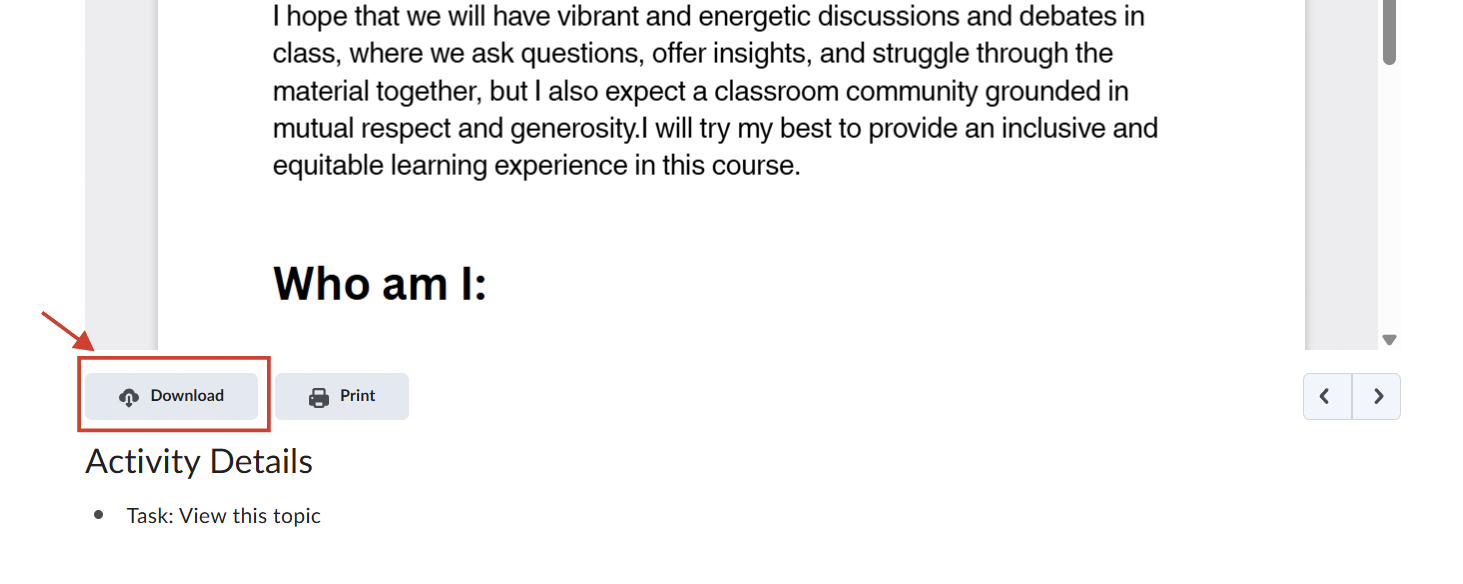
- After clicking the content on the module page, you’ll be able to preview it in a separate window.
- Scroll down to find the download button, then click it to download the file.
Bonus: For Brightspace Pulse users, click into the file, then click on the ... button → Make available offline.