In this guide, we'll explain what every icon on your course homepage means when you first log into your course.
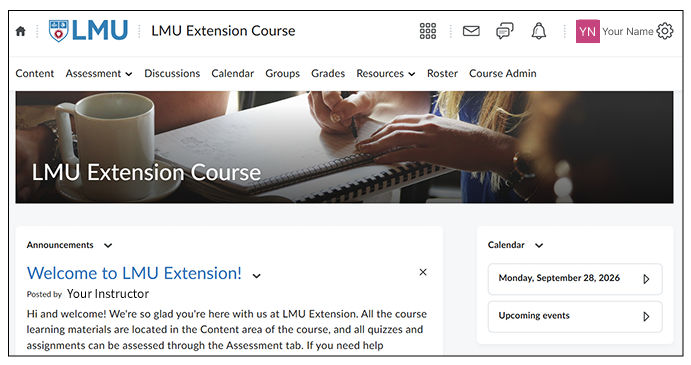
Let's take a closer look at the interface.
Navigation bar
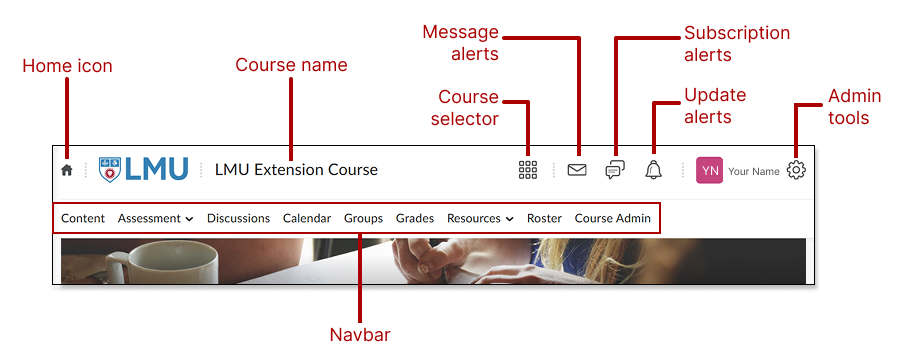
- Home icon takes you to your Brightspace homepage. You'll find all of the courses that you're enrolled in there.
- Course name indicates the course you're viewing.
- Course Selector icon allows you to search and access all your courses through a drop-down menu.
- Message alerts icon notifies you about unread mail and instant messages.
- Subscription alerts icon notifies you about any updates on discussion threads and replies you are participating in.
- Update alerts icon notifies you when announcements, grades, deadlines, replies, or subscribed forums/topics have new posts.
- Admin tools icon is your personal menu. It lets you edit user-specific settings, including your Profile, Notifications, and Account Settings.
- Navbar provides links to course-specific tools. You will use it most often to access Content (your course materials), as well as Assessments, Discussions, and Grades. Because instructors can customize their pages, the style, layout, and available links in the navbar may vary from course to course.
Homepage widgets
As you scroll down, you will see key areas called widgets that offer real-time updates on your course progress. While your instructor can customize this page—meaning your exact view may vary—the most common sections include:
- Course Banner: A large visual header at the top of the page displaying the course title.
- Announcements / Activity Feed: This is where your instructor posts urgent updates, reminders, welcome messages, and syllabus changes.
- Calendar & To-Do List: A personalized schedule that pulls in due dates, assignment deadlines, and exam times so you can track your week at a glance.
- Instructor Profile: A dedicated sidebar block featuring your instructor's photo, bio, email address, and office hours.