In this guide, we'll show you how to access and download Zoom using your LMU account. We also include LMU Camera Policy and Digital Etiquette for your review at the bottom of this page.
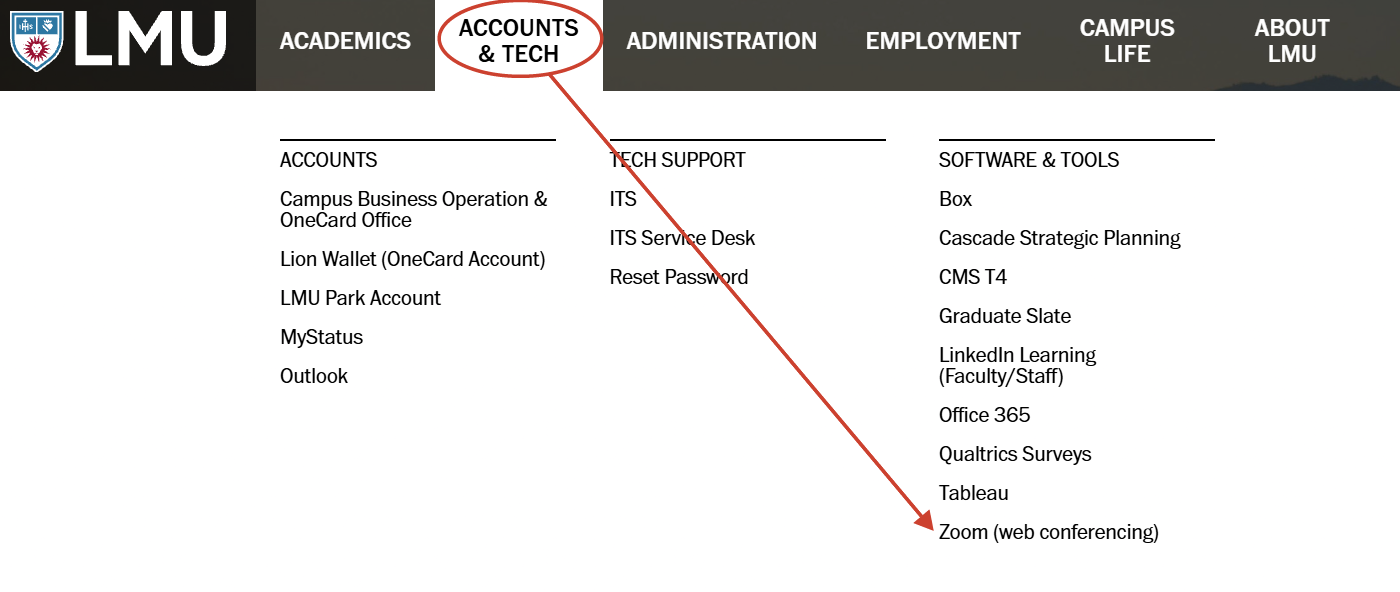
3. This will take you to your Zoom profile page; from here, you can access your Zoom profile and download the Zoom app to your device(s).

Camera Policy
Students are required to keep their cameras turned on during all Zoom meetings. This requirement must be clearly stated in the course syllabus and consistently enforced throughout the duration of the course. Exceptions to this policy are permitted only for students with official accommodations through the Disability Support Services (DSS) office. In cases of technical difficulties, students must promptly notify the instructor.
Digital Etiquette
Students are expected to demonstrate digital etiquette by being prepared, attentive, and respectful during online class. This includes using appropriate language, minimizing distractions, and actively and respectfully participating in discussions. The Student Codes and Policies related to online conduct must be clearly outlined in the class syllabus.