In this guide, we'll go over accepted file types for submission and how to submit your assignments on Brightspace.
Accepted file types
Brightspace supports most files types that can be accessed and viewed within the LMS, however un-supported file types must be downloaded and accessed with the appropriate software tool.
In many cases, your instructor will ask for a Word Doc or a PDF submission, with Brightspace recommending that students submit PDF files since they are universal and can be made from various programs. Below, you will find all the supported file types:
-
Text document:
- DOC, DOCX
- PPT, PPTX, PPS
- XLS, XLSX
- RTF, TXT, WPD, XML
Image / Media:
- JPG, JPEG, PNG
- GIF, TIF, TIFF
- BMP
- MP3, MP4
- MPG, MPEG
- MOV, M4V
- ASF, AVI, RA, RAM, RM, SWF, WAV
The maximum file size for uploads is 2GB (gigabytes). If you have a larger file size, you must compress or convert your file until it meets the size requirement. Alternatively, you can upload to a third-party platform and share the link, just make sure it's communicated to your instructor.
To prevent issues while submitting your work to Brightspace assignment be aware of the following:
- Do not use special characters such as \ / : * ? " < > | ~ # % & + { }
- Use max 45 characters
- Delete any leading or trailing spaces
- Do not use two dots before the file extension (eg: ..docx)
How to submit assignments
File Submission
Assignments with File Submissions will require students to upload a digital file of their work.
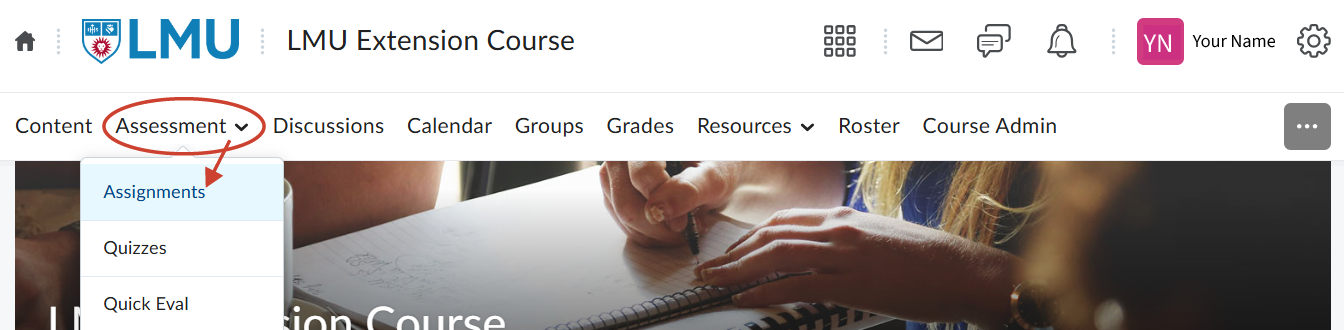
- To start, students will click on Assessment from the NavBar and select Assignments.
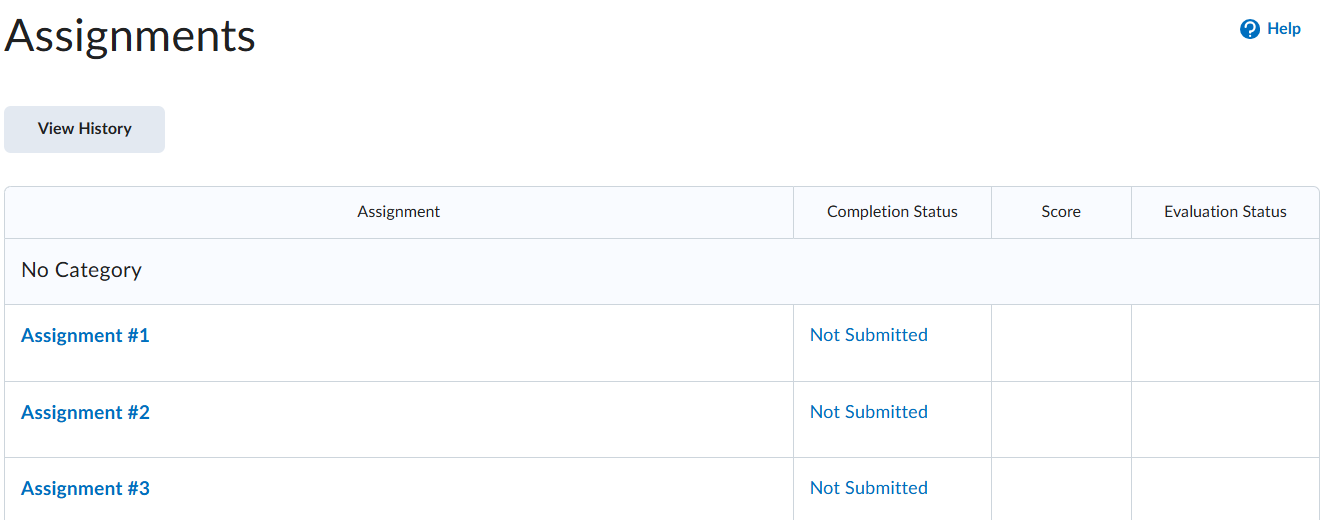
- From there, students will select the appropriate assignment and land on a page that allows them to add a file, record audio or video, and put in a comment to submit as work.
- To upload a file, click on Add a File → My Computer → Upload and select the appropriate digital file. Users can also drag and drop their file from their desktop to the upload window. Once selected, click on Add and the file will attach in to the assignment landing page. 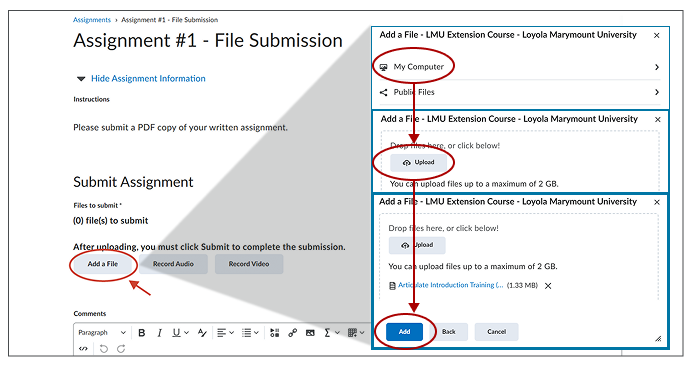
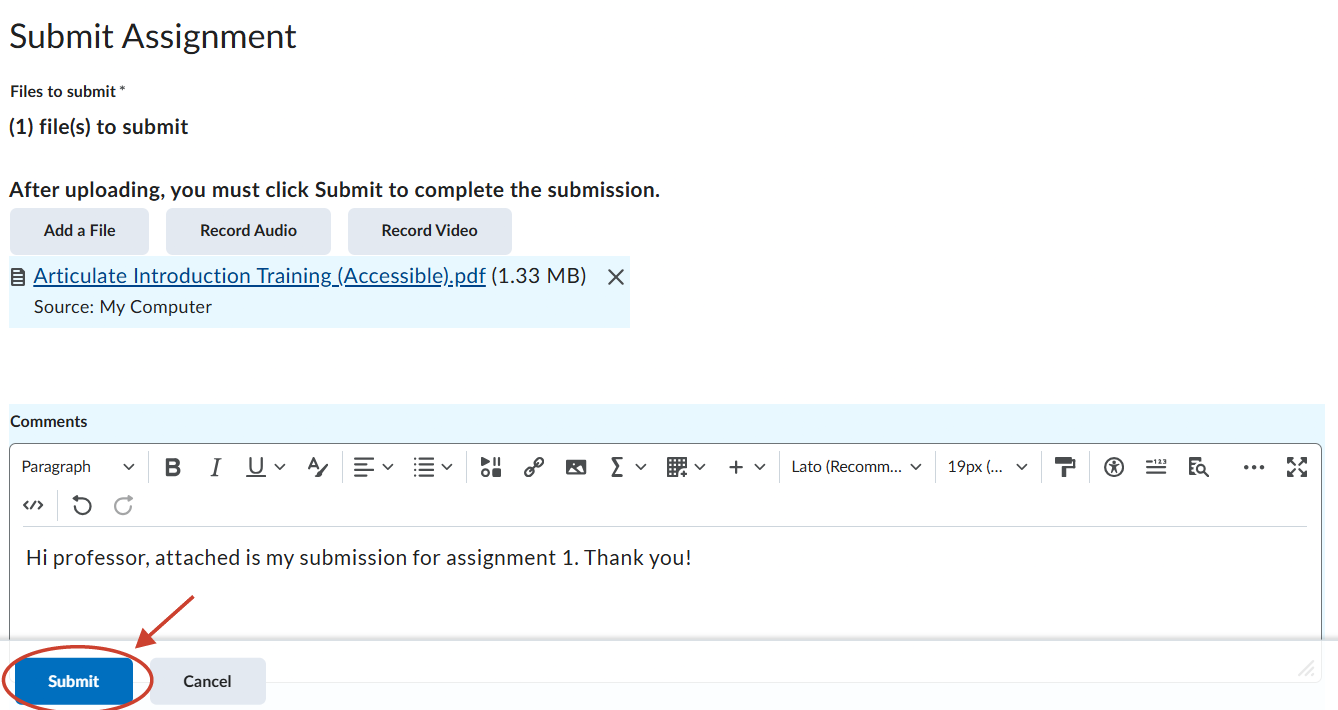
- From here, students can add a comment to supplement their digital file, and when ready, click on Submit.
Text Submission
Assignments with Text Submissions will display a HTML text box only for students to type out their response to a prompt or a question.
Once satisfied with the typed out response, simply click on Submit.